

SGWork+
For your work pass needs and more
Download the app today!
Available now on the App Store and Google Play Store.


SGWork+ is currently not available on the Huawei App Gallery.
For instructions on setting up the app, read the step-by-step guide.
About SGWork+
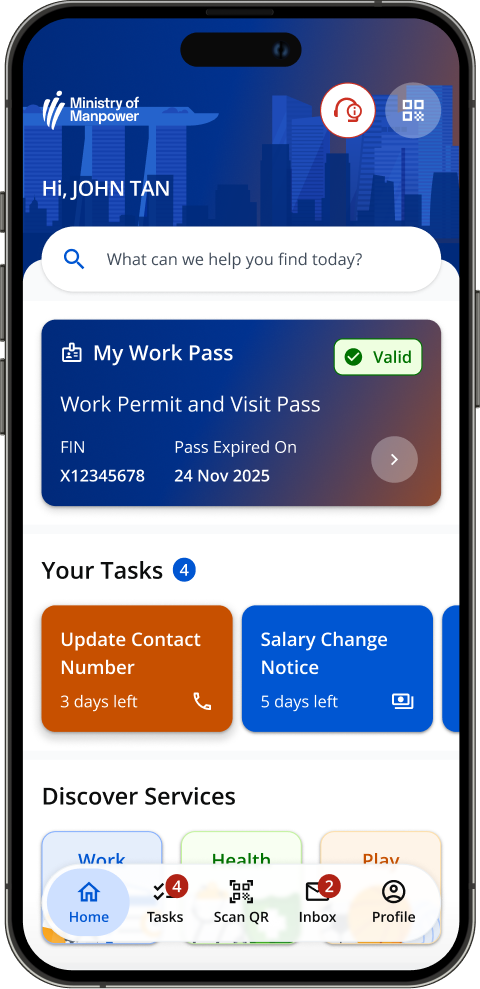
SGWork+ is a digital companion app for work pass holders – built for your work pass needs and more. Bringing together features from SGWorkPass and FWMOMCare, it allows you to easily manage your work pass, complete tasks, receive important updates from MOM, and access useful services such as viewing your employment and salary information, finding a doctor, getting help and support, and discovering recreational activities, all in one place.
-
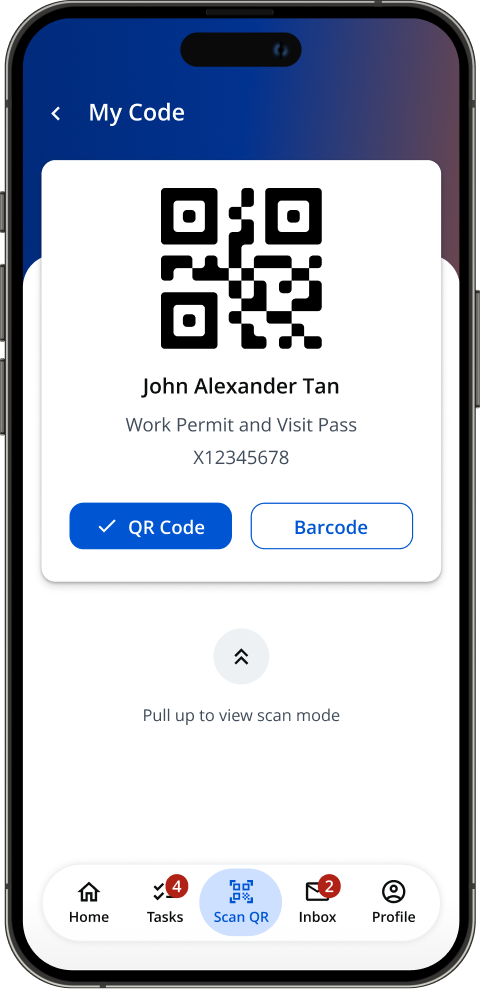
View your digital work pass
View your work pass details instantly and securely without scanning your physical card.
-
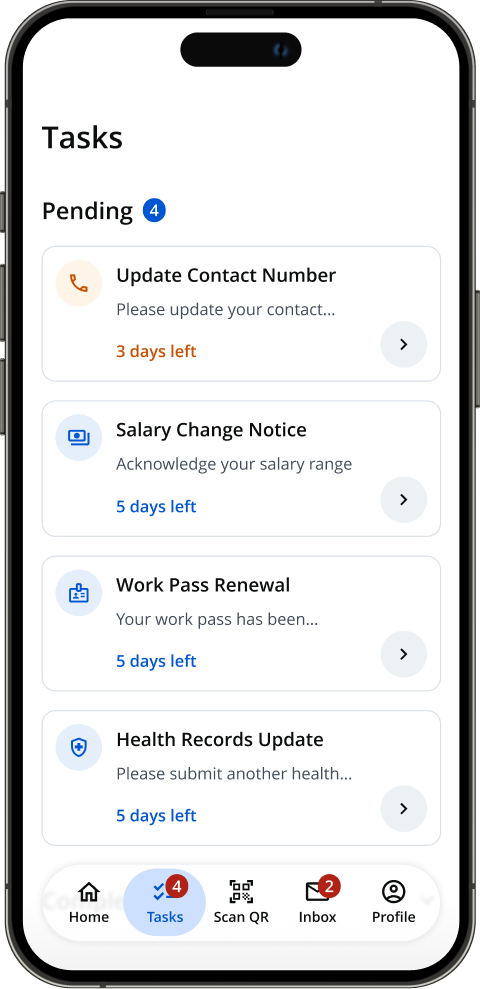
Complete assigned tasks
Complete tasks sent by MOM, such as giving consent to a message or submitting important information.
-
Receive official notices and updates
Stay informed with direct messages and important notices sent by MOM.
-
Discover mini-services
Explore simple digital tools and everyday services to support your stay in Singapore.
-
Get support and stay connected
Access well-being resources, join community initiatives, and contact MOM directly.
Now with just one app, you can view these features:
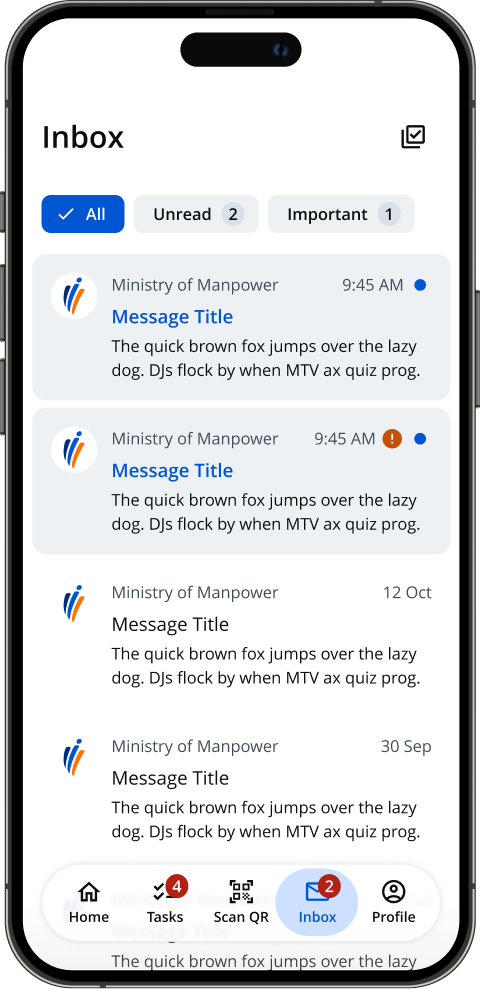
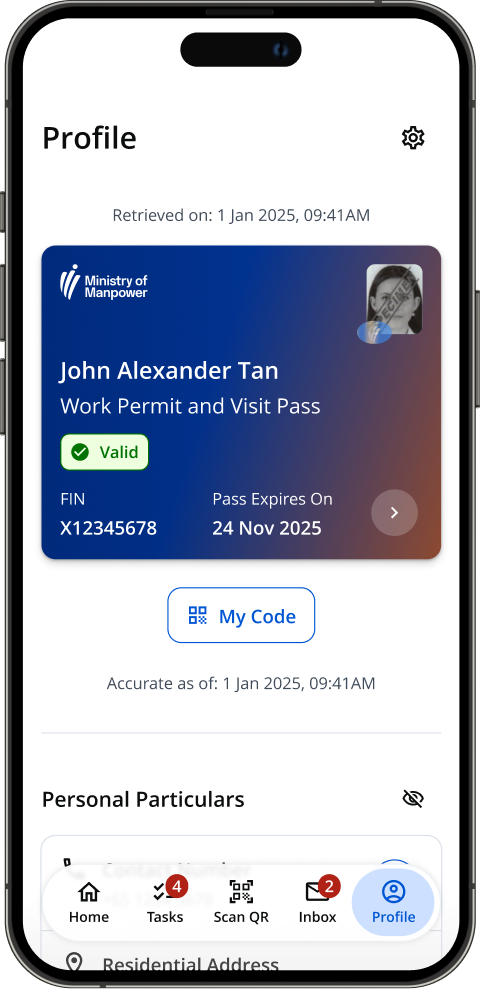
Discover Mini Services
Mini-services provides you with support during your stay in Singapore.
 Work
 Health
 Play
Work, Health and Play
Mini-services are organised into 3 main categories. In the app, tap on the category you are interested in to explore more.
Here are some examples of the mini-services you can find in the SGWork+ app:
-
WORK
Skills & Training Records
View your certificates and achievement records
-
WORK
Employment Information
View your important employment details
-
WORK
Employment Records
View your employment history records
-
WORK
News
Read about the latest information
-
WORK
Salary Information
View your updated salary
-
WORK
Survey
Submit feedback to officials
-
WORK
Talk to MOM
Contact MOM officials
-
HEALTH
Health Records
Submit or update your current health status
-
HEALTH
Find A Doctor
Find a clinic or hospital near you
-
HEALTH
Get Help
Find emergency and official MOM helplines
-
PLAY
Events & Activities
Find upcoming events & activities around you
-
PLAY
Recreation Centre
Book a space or court in a recreation centre
Getting Started
Follow these steps to log in and set up your SGWork+ app:
To set up SGWork+, you will need a mobile phone, an internet connection, and a registered Singpass account.
-
Step 1
Tap on the “Log In” button to start setting up your SGWork+ app. This button can be found on the Homepage, Tasks, Show QR and Inbox page.
-
Step 2
Log in with Singpass, or with your SGWorkPass login if you are already logged in to the SGWorkPass app.
-
Step 3
Follow the instructions in Singpass or SGWorkPass to complete your login. Once you are done, return to the SGWork+ app.
Help and Support
Device and Security
My device is jailbroken or rooted
The app will automatically block access on jailbroken or rooted phones to protect your personal information or data.
To use the app, you must use a phone that has not been modified.
For official security guidance on jailbroken or rooted systems:
- iPhone/iOS Devices: https://support.apple.com/en-sg/guide/iphone/iph9385bb26a/ios
- Android Devices: https://support.google.com/accounts/answer/9211246?authuser=2
“USB Debugging” or “Wireless Debugging” is turned on
To protect your personal information, this app cannot be used while debugging is active on your device.
You may keep Developer options enabled. Please turn off USB Debugging and Wireless Debugging, then reopen the app.
For Android Phones
Samsung, Xiaomi, Oppo, Vivo & Google Pixel
- Open Settings > Developer options. (If you cannot find Developer options, refer to the “Can’t find Developer options?” section below.)
- Turn off USB Debugging.
- Turn off Wireless Debugging if it is enabled.
- Disconnect any USB cable connected to a computer.
- Restart the app.
Can’t find Developer options?
- Open Settings and search for Build number.
- Tap Build number 7 times continuously until you see a message saying “You are now a developer”.
- Return to Settings and open Developer options.
- Disconnect any USB cables connected to a computer, then reopen the app.
For iPhones
iOS 16 or later
- Disconnect your iPhone from any computer or development tool, then close and reopen the app.
- If the issue continues, restart your device and try again.
Still cannot open the app?
If you turned off USB Debugging and Wireless Debugging but still see this message:
- Disconnect and unplug any USB cables or chargers connected to a computer or external adapter.
- Restart your device, then reopen the app.
- If your phone was provided by your employer, contact your company’s IT manager. Corporate security settings may enforce these options automatically.
I downloaded the app from somewhere else – is it the real one?
To keep your information safe, you should only download our app from official app stores:
- Apple App Stores (for iPhone/iOS devices)
- Google Play Store (for Android devices)
Logging in
I don’t have Singpass
First time users can register for Singpass here.
Read the step-by-step guide here.
Also available in:
I forgot my Singpass password
Existing users can reset their Singpass here if they are unable to log in.
Read the step-by-step guide here.
Also available in:
Alternatively, you may also locate a Singpass counter nearest to you for help.
Work Pass Details
My pass shows as ‘Invalid’ or ‘Expired’
This means that your work pass has been cancelled or expired, and you can no longer continue to work in Singapore.
You will need to ask your employer to log in to WP Online or EP eService to check and fix the issues that made the work pass invalid or expired.
For more information, read our FAQs here.
The use of SGWork+ is governed by these Terms of Use and Privacy Statement.